

Technology powers almost every part of modern life, from computers and smartphones to smart home devices and IoT gadgets. But even the most advanced devices can encounter problems like crashes, errors, slow performance, or connectivity issues. Knowing how to resolve these issues is essential, and this tech troubleshooting guide will help you do it efficiently.
This guide explains in detail how to troubleshoot computers, software, mobile devices, and networks, with easy-to-follow methods and practical tips for beginners.
Understanding Tech Troubleshooting

A tech troubleshooting guide helps users identify, diagnose, and resolve issues in electronic devices, software, or networks. Troubleshooting is more than guessing—it involves observing symptoms, testing possible causes, and applying logical solutions.
Key principles include:
- Patience: Avoid rushing and creating new problems.
- Systematic Approach: Follow step-by-step methods.
- Documentation: Record what changes you make for easier reference.
- Prevention: Learn habits to avoid future issues.
Step 1: Identify the Problem Clearly
Before solving any tech issue, you must understand it thoroughly. Ask yourself:
- Which device or program is malfunctioning?
- What symptoms am I seeing (slow response, errors, crashes, no power)?
- When did the problem begin, and what changed recently?
Tip: Write down the symptoms and steps you’ve already tried. This will make troubleshooting more organized and help if you need expert support later. Following this step is essential in any tech troubleshooting guide.
Step 2: Restart the Device
Often, the simplest solution works best. Restarting a device can:
- Clear temporary files and cache
- Reset memory and background processes
- Resolve minor software glitches
Example: If your computer freezes while opening a program, restart it before attempting other troubleshooting steps. Restarting is one of the most basic tips in any tech troubleshooting guide.
Step 3: Check Hardware Connections and Power
Many issues stem from loose connections or power problems. Ensure:
- Cables for monitors, keyboards, mice, or routers are plugged in securely
- The device is receiving power (check power indicators)
- Batteries on wireless devices are charged or replaced
Tip: If a peripheral is not working, unplug and reconnect it to test functionality. Checking connections is always a key step in a reliable tech troubleshooting guide.
Step 4: Update Software, Drivers, and Firmware
Outdated software often causes errors, slow performance, or crashes.
Steps to update:
- Operating System: Use Windows Update, macOS Software Update, or Linux package manager
- Device Drivers: Update graphics, sound, printer, and network drivers
- Applications: Update browsers, office tools, and essential apps
- Firmware: Check routers, smart devices, or storage drives for firmware updates
Regular updates not only fix bugs but also improve security and speed. Any comprehensive tech troubleshooting guide emphasizes keeping software up to date.
Step 5: Scan for Malware, Viruses, and Spyware
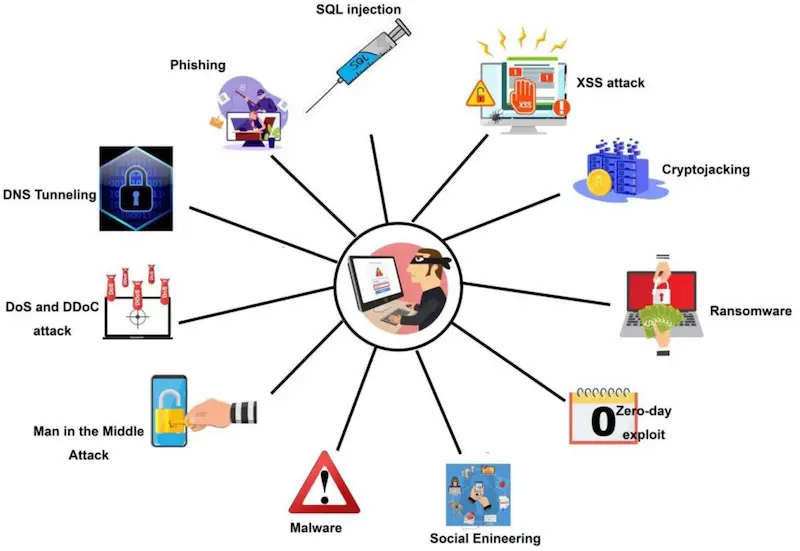
Malware can drastically affect device performance. Use trusted antivirus or anti-malware tools to:
- Scan the device completely
- Quarantine or remove threats
- Enable real-time protection for ongoing security
Tip: Avoid downloading files from unknown sources, and be cautious with email attachments. Scanning for malware is a core principle in this tech troubleshooting guide.
You may also like it:
Top Gadget Releases: Latest Tech Innovations You Should Know
How to Set Up PC: Complete Step-by-Step Beginner Guide
Beginner Tech Tutorials: Easy Guides to Learn Technology
DIY Tech Projects: Fun & Easy Projects for Beginners
Step 6: Free Up Space and Optimize Performance
Low storage or memory overload can slow down your device significantly.
Tips for optimization:
- Delete unnecessary files, programs, or apps
- Use built-in disk cleanup tools
- Manage startup programs to improve boot time
- Consider upgrading RAM or using an SSD for better speed
Example: A PC running multiple heavy programs may slow down—close unused applications and free memory. Performance optimization is an essential part of any tech troubleshooting guide.
Step 7: Troubleshoot Internet and Network Issues
Connectivity problems are common. Steps to troubleshoot:
- Restart your modem/router
- Check Wi-Fi or Ethernet cable connections
- Run network diagnostics on your device
- Disable and re-enable network adapters
- Test on another device to identify if it’s network-specific
If the problem persists, contact your Internet Service Provider (ISP). Network troubleshooting is a critical section of any reliable tech troubleshooting guide.
Step 8: Use Built-In Troubleshooting Tools
Modern devices include built-in tools to help diagnose issues:
- Windows Troubleshooter: Detects audio, display, and network problems
- macOS Diagnostics: Checks hardware and software health
- Mobile Devices: Settings often include troubleshooting options for apps, battery, and connectivity
These tools guide beginners step-by-step to fix common problems and are always recommended in a tech troubleshooting guide.
Step 9: Restore, Reset, or Reinstall
If a problem persists:
- System Restore (Windows/macOS): Revert to a point before the problem occurred
- Reset Settings: Keep personal files but restore system or app settings
- Factory Reset: Remove all data and restore the device to original state (backup data first)
This is often the last step for persistent issues that cannot be resolved otherwise. Restarting or restoring is highlighted in nearly every tech troubleshooting guide.
Step 10: Seek Expert Help
Some problems require professional assistance:
- Hardware failures (damaged motherboard, hard drive, or screen)
- Complex software issues
- Network infrastructure failures
Certified technicians or support services can solve issues safely and quickly. Knowing when to seek help is emphasized in any complete tech troubleshooting guide.
Additional Tech Troubleshooting Tips
- Stay calm: Avoid panicking when devices fail
- Document steps: Helps in complex troubleshooting or when contacting support
- Learn shortcuts and basic commands: Improves efficiency
- Regular maintenance: Updates, backups, and cleanup prevent future problems
- Use reliable software: Avoid unverified apps that can cause errors
Common Tech Problems and Quick Solutions
| Problem | Quick Fix |
| Slow PC | Restart, clean files, close unused apps, update software |
| Internet not working | Restart router, check cables, troubleshoot network |
| Software crashes | Update app, restart device, reinstall software |
| Device won’t turn on | Check power, remove peripherals, try a different outlet |
| Error messages | Note exact message, search online guides, update software |
Conclusion
A comprehensive tech troubleshooting guide empowers you to solve most problems efficiently and confidently. By following a systematic approach—identifying the problem, updating software, checking hardware, scanning for malware, and using built-in tools—you can maintain smooth performance across computers, smartphones, and other devices.
Patience, regular maintenance, and methodical problem-solving are the keys to keeping your technology running flawlessly.
FAQs
1. What is a tech troubleshooting guide?
It is a step-by-step manual for identifying, diagnosing, and fixing problems in devices, software, or networks.
2. Can I troubleshoot without technical knowledge?
Yes, following a structured tech troubleshooting guide makes it easy even for beginners.
3. How do I prevent tech problems?
Keep devices updated, run antivirus scans, clean storage regularly, and avoid unverified apps.
4. When should I seek professional help?
For hardware failures, complex software issues, or network problems that cannot be fixed at home.
5. Is restarting a device always helpful?
Yes, restarting clears memory, resets processes, and resolves many minor issues.