
Setting up a PC for the first time can feel confusing, especially if you are not familiar with computer hardware or software. From connecting cables to configuring system settings, every step may seem technical. However, once you understand the process, learning how to set up PC becomes simple and stress-free.
This detailed guide explains each step clearly, helping you set up your PC properly for work, study, gaming, or personal use.
Things to Prepare Before Setting Up a PC
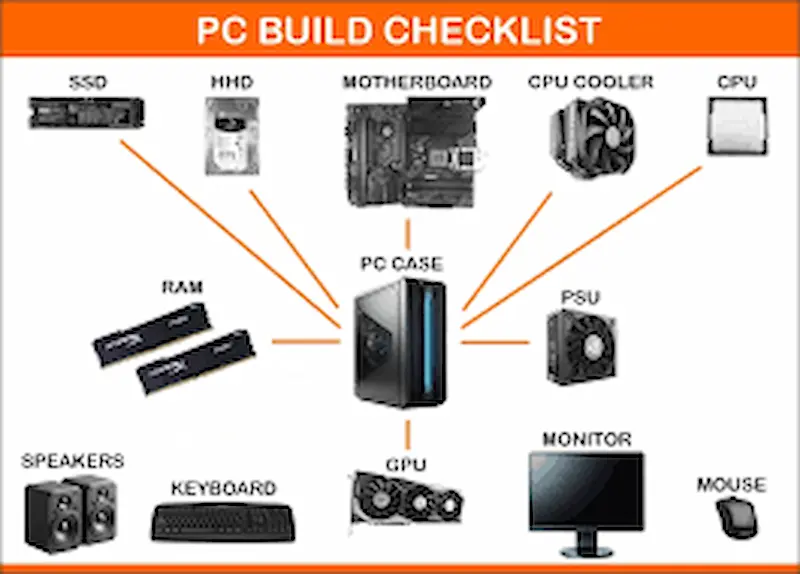
Before you start, make sure you have everything ready. Preparing in advance saves time and avoids interruptions.
You will need:
- Desktop PC or computer tower
- Monitor and monitor cable (HDMI, VGA, or DisplayPort)
- Keyboard and mouse (wired or wireless)
- Power cables for PC and monitor
- Stable power source or UPS
- Internet connection (Wi-Fi or Ethernet cable)
Place your PC in a clean, well-ventilated area to prevent overheating.
Step 1: Connecting the PC Hardware Correctly
The first and most important step in how to set up a PC is connecting all hardware properly.
Connecting the Monitor
Connect the monitor cable to the display port or HDMI port on the PC. Then plug the monitor’s power cable into an electrical outlet and turn it on.
Connecting Keyboard and Mouse
Plug the keyboard and mouse into USB ports on the PC. For wireless devices, insert the USB receiver or pair them using Bluetooth.
Connecting the Power Supply
Insert the PC’s power cable into the power socket. If your PC has a power switch at the back, turn it on.
Double-check all connections to ensure everything is firmly connected.
You may also like it:
Top Gadget Releases: Latest Tech Innovations You Should Know
Beginner Tech Tutorials: Easy Guides to Learn Technology
Step 2: Turning On the PC for the First Time
Press the power button on the front of the PC. The computer should start, and you will see the startup screen on the monitor.
If the PC does not start:
- Check power cables
- Ensure the monitor is turned on
- Verify the display cable connection
Once the screen appears, the system will guide you through the initial setup.
Step 3: Operating System Setup
Most new PCs come with an operating system like Windows pre-installed.
Select Language and Region
Choose your preferred language, time zone, and keyboard layout. These settings affect how your PC displays text and time.
Create a User Account
Enter your name and create a secure password. This account protects your files and settings.
Internet Connection
Connect your PC to Wi-Fi or an Ethernet cable. Internet access is essential for downloading updates and security patches.
Step 4: Installing System Updates
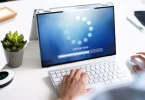
After completing the initial setup, your PC will check for updates. These updates are very important.
Updates help:
- Fix software bugs
- Improve performance
- Protect against security threats
Allow all updates to install fully. Restart the PC if required.
Step 5: Installing Essential Software
After updates, install basic software needed for daily use.
Essential programs include:
- Web browser
- Office or document software
- Media player
- PDF reader
- Antivirus or security software
Avoid installing unnecessary software to keep your PC fast and organized.
Step 6: Setting Up Security and Privacy
Security is a key part of learning how to set up a PC correctly.
Important security steps:
- Enable built-in firewall
- Install antivirus software
- Use strong passwords
- Turn on automatic updates
- Review privacy and permission settings
These actions help protect your personal data and system.
Step 7: Organizing Files and Storage
Good file organization makes your PC easier to use.
Create folders such as:
- Work
- Study
- Personal
- Downloads
Rename files clearly and avoid saving everything on the desktop. Organized storage improves productivity and system performance.
Step 8: Customizing PC Settings
Customize your PC according to your comfort and needs.
You can adjust:
- Screen brightness and resolution
- Sound volume and input devices
- Power and sleep settings
- Desktop background and themes
Personalizing your PC makes daily use more enjoyable.
Step 9: Setting Up Backup and Recovery
Backing up your data protects against accidental loss.
You can:
- Use cloud storage
- Use an external hard drive
- Enable automatic backups
Regular backups ensure your files remain safe even if the system fails.
Common Mistakes to Avoid When Setting Up a PC
Beginners often make simple mistakes that affect performance.
Avoid:
- Skipping updates
- Ignoring security settings
- Installing too many programs
- Using weak passwords
Avoiding these mistakes helps your PC run smoothly for a long time.
Conclusion
Learning how to set up PC is an important skill in today’s digital world. By following these detailed steps, you can set up your PC safely, efficiently, and confidently. Proper setup ensures better performance, strong security, and a smoother user experience.
With patience and careful setup, your PC will be ready to support your daily tasks for years to come.
FAQs
How long does it take to fully set up a PC?
Usually 45 minutes to 1.5 hours, depending on updates and internet speed.
Can I set up a PC without internet?
Basic setup is possible, but internet is needed for updates and downloads.
Is antivirus software necessary for a new PC?
Yes, it helps protect against malware and security threats.
Do I need technical knowledge to set up a PC?
No, following step-by-step instructions makes it easy for beginners.
What should I do after setup is complete?
Install essential software, organize files, and set up backups.